
A few days ago, OpenAI launched their first-ever agentic AI browser ChatGPT Atlas. Nahhh, that’s what Sam told us in their YT stream,

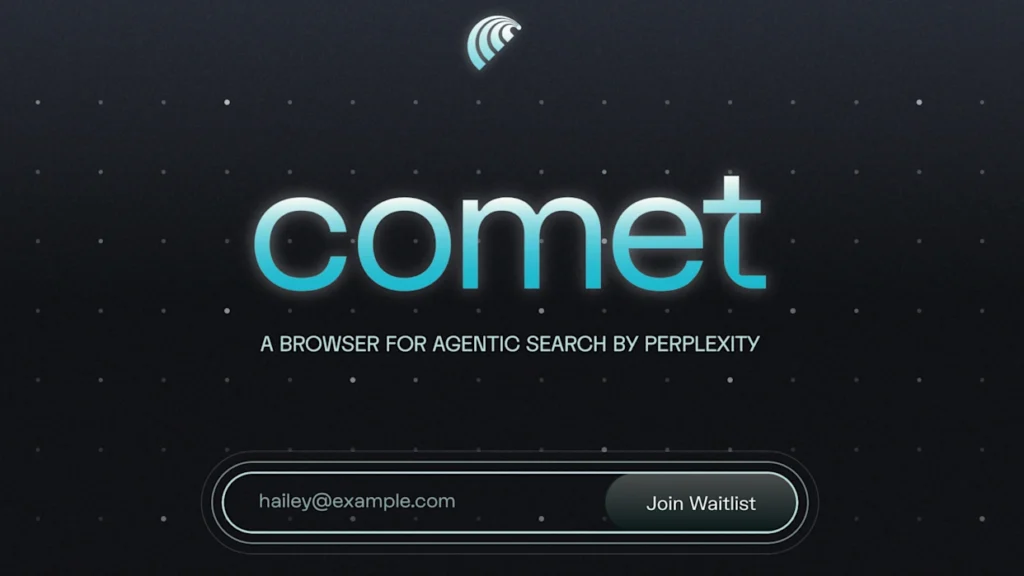
My mistake, well not first because the same thing was done by Perplexity when they launched their web browser Comet.
It was in its early stages and performed pretty well as the so-called first.
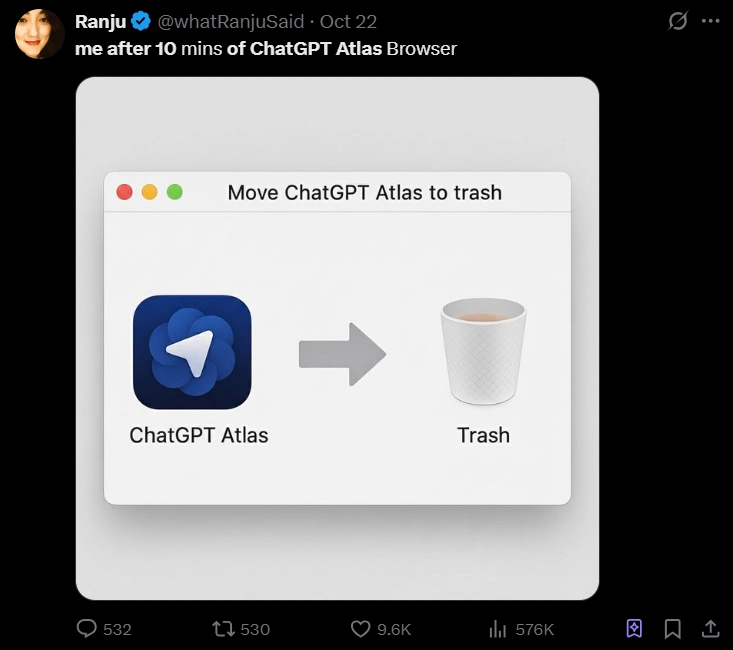
Beside the blatant statement by Sam, Atlas didn’t receive much praises and most viewers commented how it was a simply a more bloated version of Google Chrome.
So, we want to investigate it ourselves on how bad it really was!
Below we explore how ChatGPT’s Atlas Browser works, its features, underlying elements, and the innovations that make it a powerful tool for smarter, faster research.
5 Days Ago, ChatGPT Atlas Has Released
In MacOS for its trial period. So, was it something over the top of a web browser that never was imagined or the Atlas OpenAI team created something extraordinary from scratch?
The first introduction was nothing insanely extraordinary, even some users mentioned how bad it generally was.
Well, agentic browsers have a bad reputation of being overpromised and underdelivered.
ChatGPT Atlas doesn’t necessarily bring anything groundbreaking to the agentic browser space, at least not yet.
But, it’s an early experiment, something that lets you explore how AI could quietly fit into your daily browsing routine.
There are multiple AI chatbot assistants out there such as Edge Copilot, Monic, Chatsonic, Jasper Chat, and YouChat.
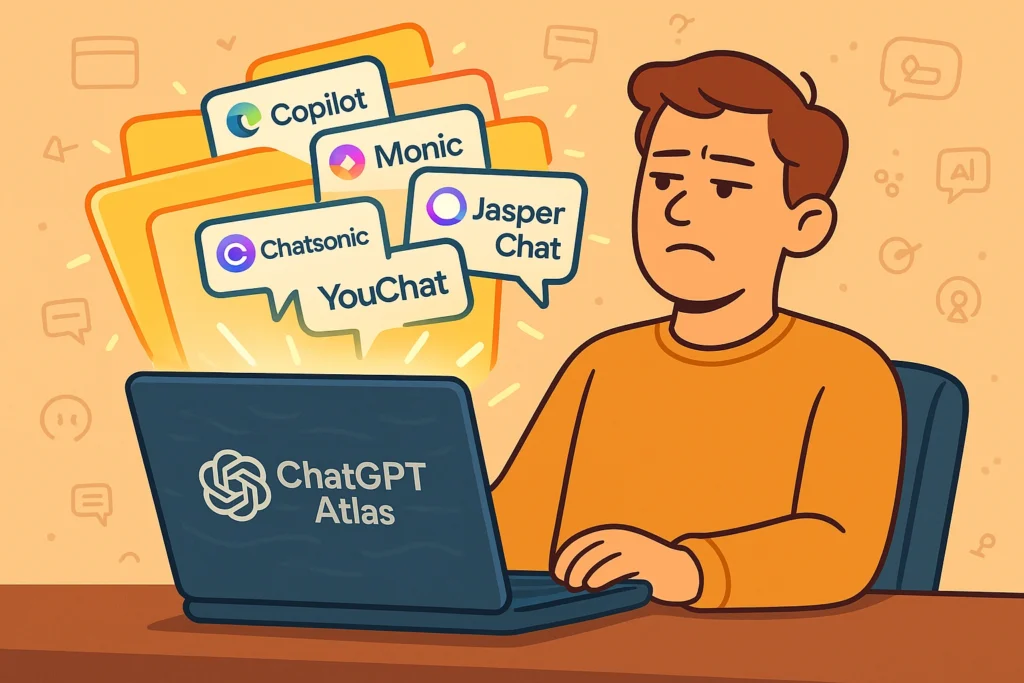
ChatGPT would fit in as an Agentic Assistant category but they had to build an entire browser to prove a point. It’s as if OpenAI wanted to show not just what ChatGPT can say, but what it can do.
For all the hype, ChatGPT Atlas still feels rough around the edges. It’s ambitious, sure, but right now it seems more like a proof of concept than a polished tool.
7 Atlas Features You’ll Definitely Pretend to Be Impressed By 😏
So, we checked ChatGPT Atlas and here is a breakdown of the key features and insights we discovered. Please be noted there are also more ChatGPT-Friendly Browsers we covered.
1. Built-in ChatGPT Sidebar
With Atlas, you have a chat sidebar that you can open alongside any webpage.
You can ask things like: “Summarise this page,” “Compare these products,” or “Rewrite this text to sound more professional” instantly.
2. Browser “Memories” / Context-Aware Assistant
If you enable it, Atlas remembers the browsing context: pages you visited, tasks you started, links you looked at.
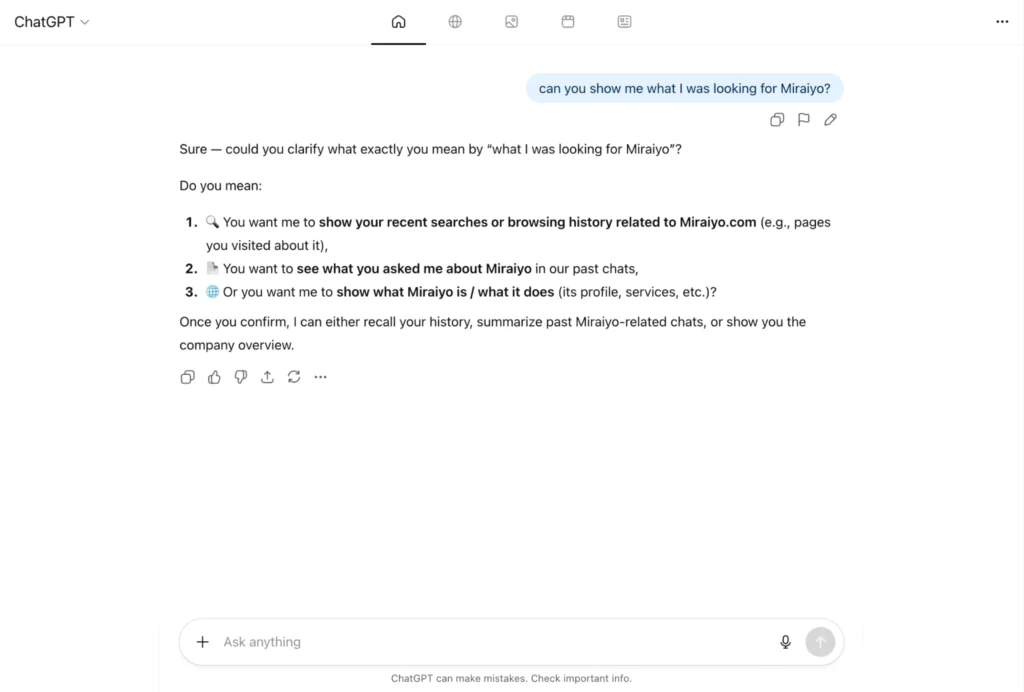
Convenient for people, who often look at their history.
But most of us don’t want our AI to creep on our search history 😏, some secrets are meant to remain secret. 0 points in privacy.
3. Agent Mode (Task Automation)
For Plus/Pro/Business users (preview), Atlas lets ChatGPT take real-actions: open tabs, fill out forms, shop, research, plan an event, all while you supervise.
This feature is pretty handy but locked behind a paywall!
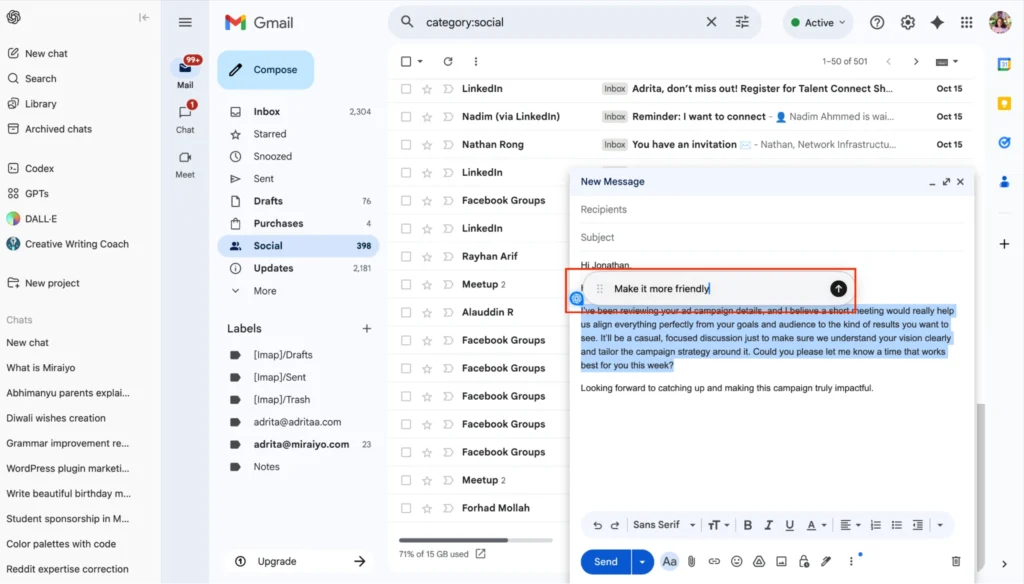
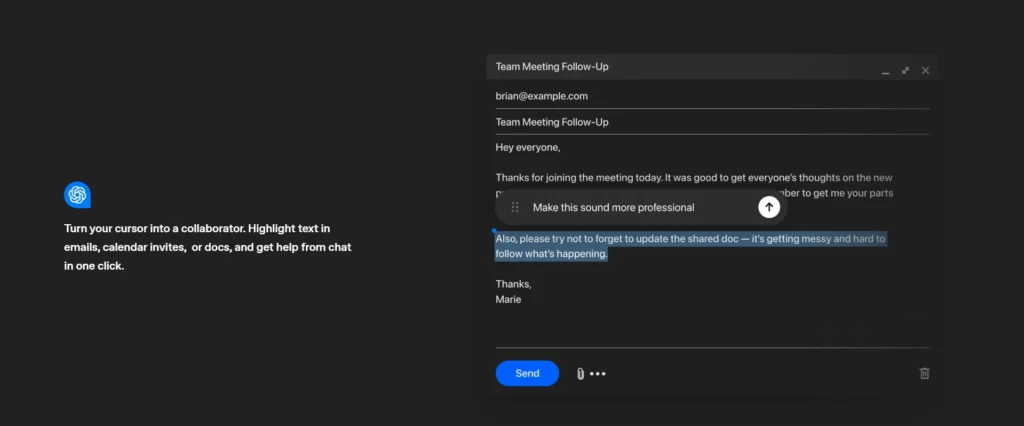
4. Inline Writing / Editing Assistance
You can highlight text in an email, doc or page and ask ChatGPT to rewrite/edit it right there with no switching apps or copy/paste.
5. Natural-Language Commands & Tab/Workflow Control
You can give commands like “Close all shopping tabs,” “Reopen that article I viewed,” or “Compare these two travel sites” and the browser understands and acts.
Here are some more suggested commands,
- Open my research tabs from yesterday.
- Summarize this page for me.
- Highlight the key points in this article.
- Find reviews for this product.
- Save this page to my bookmarks.
- Translate this page to English.
- Show me similar articles.
- Search for flights to Paris next month.
6. Multi Tab Feature
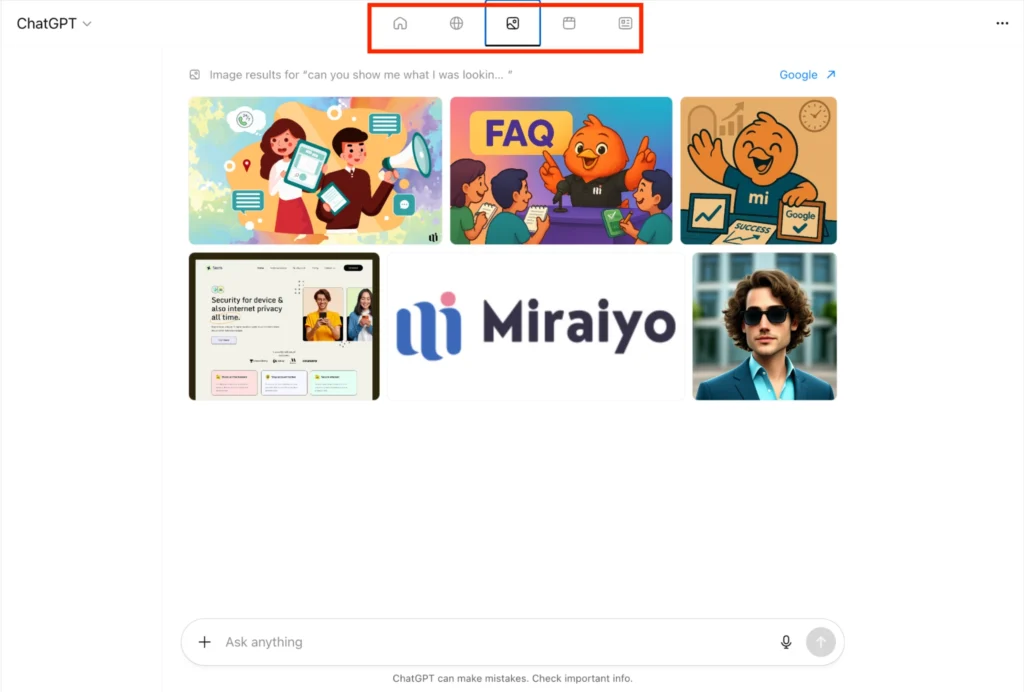
The Atlas toolbar provides quick access to ChatGPT’s key features: Home, Explore, Image, Files, and Canvas all in one place. It helps you easily switch between chatting, creating visuals, uploading documents, and working on collaborative projects.
Home Tab
Takes you back to the main ChatGPT home screen. From there, you can start a new chat, browse past chats, or access settings.
Explore / Discover Tab
Lets you browse features, GPTs, and examples created by OpenAI and the community. You can find custom GPTs, apps, or tools tailored to specific tasks (like SEO, writing, coding, etc.).
Image Tab
Opens the image generation or upload view. You can either upload an image for analysis (like you did) or generate images using text prompts. And, it’s part of ChatGPT’s vision and image-editing feature set.
Files Tab
Lets you upload or access files (PDFs, Docs, images, etc.) directly into a conversation. ChatGPT can then read, summarize, or extract data from them.
Canvas / Docs Tab
Opens the Canvas (document editor), a collaborative space to write or edit text, code, or content together with ChatGPT in real time. Very useful for creating reports, articles, or code projects.
7. Full Browser Functionality + Importing Data
Atlas is a full browser (tabs, bookmarks, history, password import) built on Chromium, and you can import from Chrome/Safari/Firefox.
Yeah, I would love to import my bookmarks and other tabs to a new browser but will I ever use a new browser?
ChatGPT Atlas: An Honest Review
ChatGPT Atlas has some features, but do they make it truly exceptional? Let’s deep dive further
The Goods
The Sidebar Works Like a Regular AI Assistant
With ChatGPT integrated directly as a sidebar, Atlas does make multitasking a bit easier. You can ask questions, summarize pages, or get writing help without switching tabs.
It’s convenient if you’re doing light research or casual browsing, but it’s not exactly revolutionary.
We have many AI Assistants such as Microsoft Co-Pilot, Sider AI, and Monica, making ChatGPT just another player in an already crowded space.
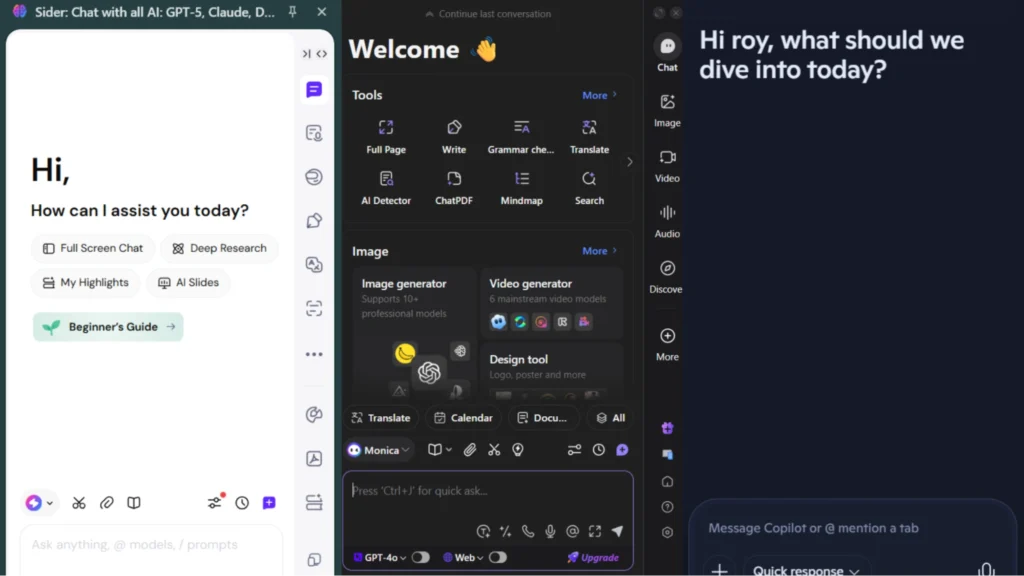
The interface is smooth enough, though sometimes it can feel like an extra step if you already use ChatGPT on another device.
ChatGPT Atlas is Customizable
Atlas gives you a fair bit of control over how it looks and behaves, so does every other browser.
You can change themes, tweak layout preferences, or adjust how ChatGPT responds to your queries.
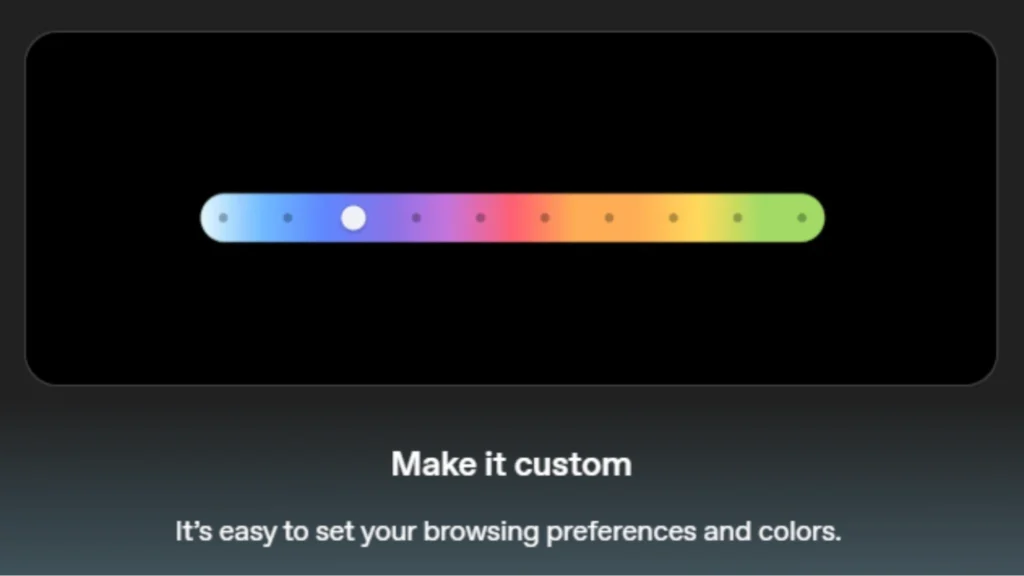
The customization options are there, practical and easy to find but they don’t drastically change the browsing experience.
Still, if you’re someone who enjoys tailoring tools to fit your workflow, Atlas gives you enough flexibility to make it feel a bit more personal.
Atlas has Multi Tab System
As we mentioned earlier, the multi-tab system is one of Atlas’s more useful features.
You can open multiple chats or tasks at once, which helps if you’re comparing information or managing different projects.
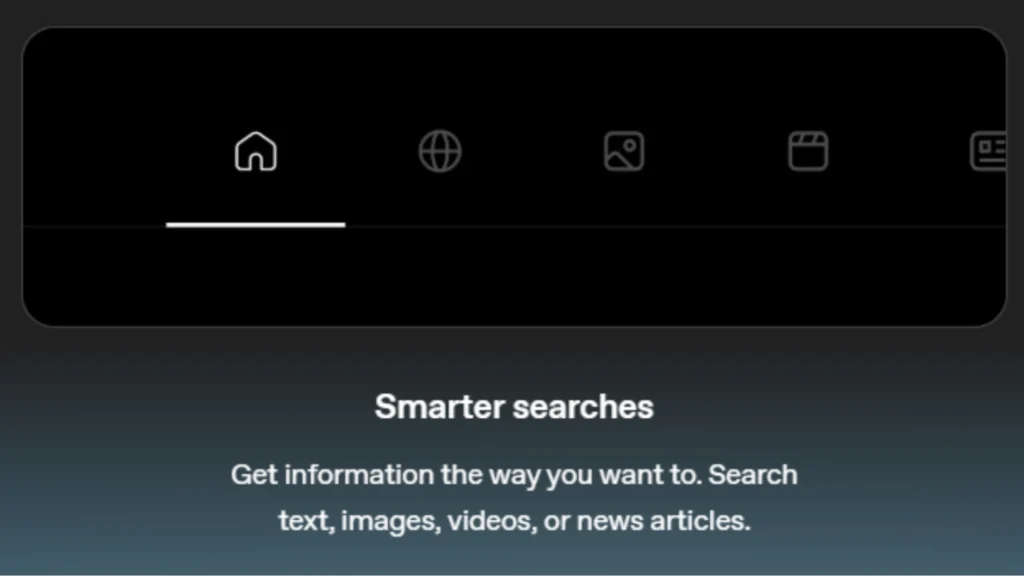
It’s still not fairy dust since every browser has a multi-tab feature but in Atlas, each tab remembers its context with ChatGPT, which is handy. The setup feels organized, and switching between tabs is smooth.
It won’t replace your main browser yet, but it’s a thoughtful addition for those who use ChatGPT for research or productivity.
Atlas has Custom Cursor Modifications
The custom cursor feature is more of a fun extra than a necessity. You can adjust how your cursor looks or behaves, which adds a bit of personality, but it doesn’t really affect how you use the browser.
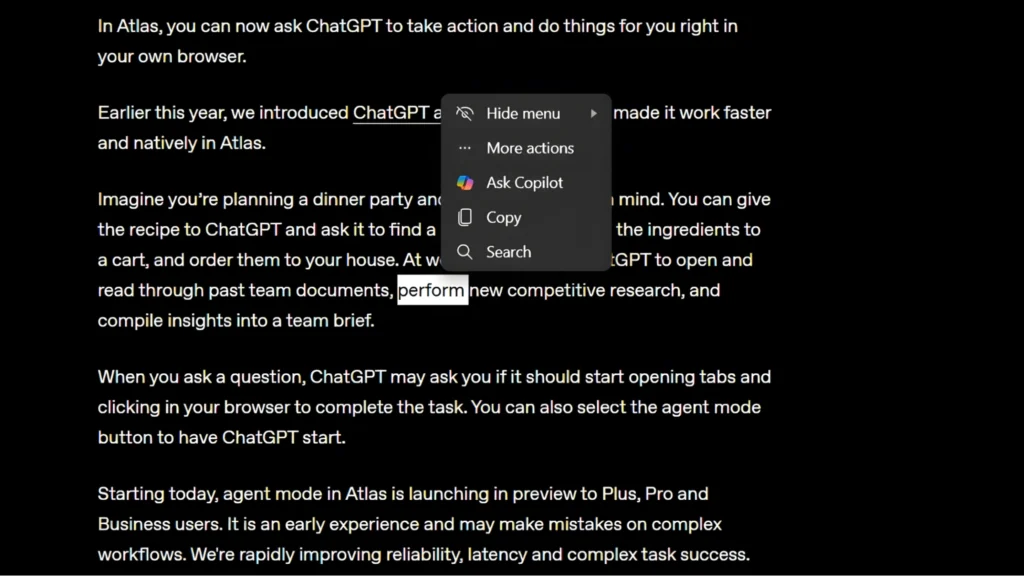
In Microsoft Edge, you will also see the same feature but with more options and greatly polished.
Atlas Gives Customized Shopping Experience
Atlas tries to make shopping feel personal, but right now it’s more guesswork than genius. The idea sounds smart, an AI that learns your taste and suggests what you’ll actually want but in practice, it feels half-baked.
The recommendations are often random, repetitive, or just plain off. It’s less like a personal shopper and more like a confused intern throwing links your way.
Sure, it might improve over time, but for now, it feels like a feature added just to say it exists, not because it really works.
The Bads
It Doesn’t have an Adblocker
A browser with an adblocker feels like a fresh hot coffee in the morning, even though it’s illegal to block certain ads. Well, Brave offered an adblock (they didn’t sponsored us), shout out to Brave,
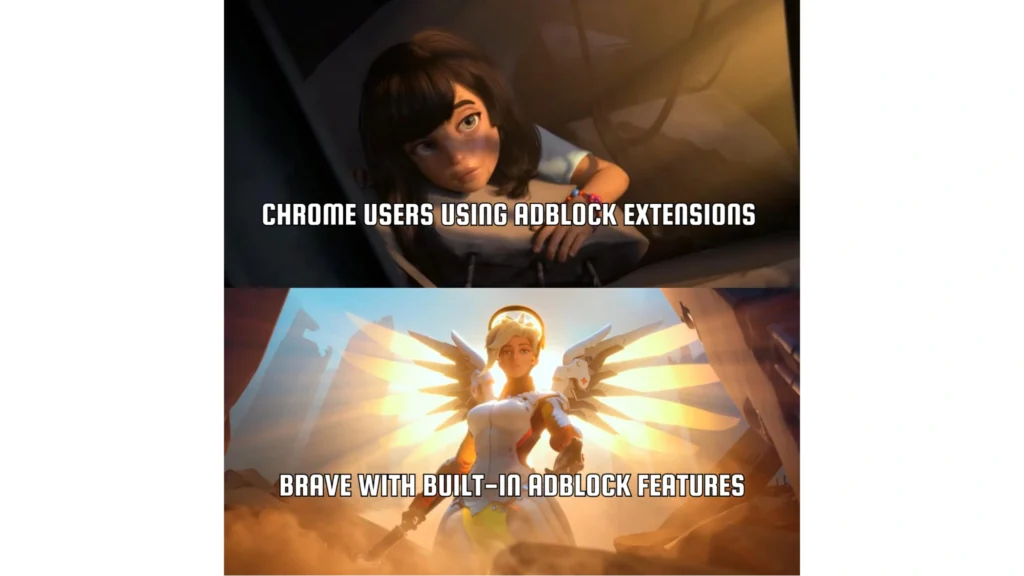
If you’re used to a clean browsing experience, the lack of an adblocker in ChatGPT Atlas will probably stand out. You’ll still run into ads on most sites, and sometimes it breaks the flow of what you’re doing.
For a modern AI-powered browser, it feels like a small but noticeable gap. Atlas isn’t trying to be a hardcore browsing tool; it’s more focused on AI integration and multitasking
Your Personal Information is Not Safe
No matter what an agentic browser says to you, privacy is always a tricky subject when AI is involved, and Atlas doesn’t make it any simpler.
The browser does collect data to make your experience smarter, but that also means your browsing activity isn’t completely private.

You do get some control over what’s remembered or stored, but it’s not as transparent as some users would prefer.
It doesn’t necessarily mean your data is at risk, just that you’ll want to be cautious about what you share or where you log in.
Atlas is Not a New Idea
Let’s be honest, the concept of an AI-powered browser isn’t exactly new. We’ve seen similar approaches from Microsoft Edge’s Copilot, Opera’s Aria Assistant, and even Brave’s Leo AI.
There are also plenty of Chrome extensions like Monica AI, Merlin, and ChatGPT Sidebar that already do similar things.
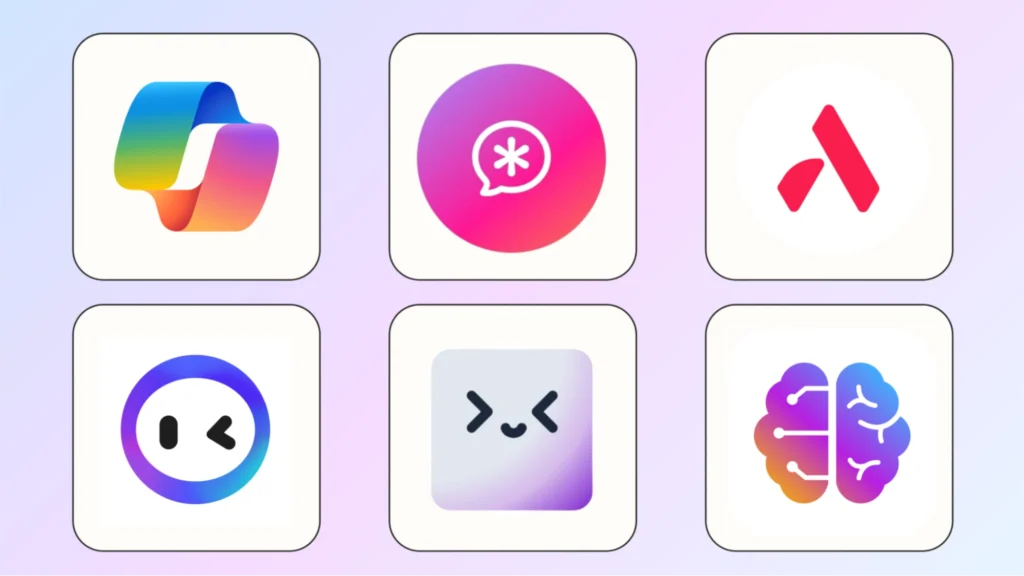
Atlas doesn’t break new ground; it just refines the idea and integrates ChatGPT into it more tightly.
The result is practical, but not revolutionary.
Most of the Features Already Exist
Once you spend some time with Atlas, you’ll realize a lot of its features feel familiar. Sidebar chat, tab management, rewriting tools, customization most of these already exist in other browsers or extensions.
Atlas simply bundles them together into one neat package.
That’s not necessarily a bad thing; it makes your workflow simpler if you already use ChatGPT often.
But it doesn’t feel like you’re getting brand-new functionality. It’s a nice step toward integration, just not a major leap forward.
If you’re expecting a browser that completely changes how you use the internet, Atlas probably won’t be that for you.
90% Users had Negative Experience
Just watch this video,
Early reviews haven’t been glowing, and that’s fair. Many users reported slow performance, limited compatibility, and a few bugs that make it feel unfinished.
On the flip side, others mentioned that it has potential, it just needs time to mature.
You might find it works fine for light use but struggles during heavier tasks. It’s clearly a work in progress rather than a polished product.
The good thing is that OpenAI seems to be taking feedback seriously, so improvements are likely.
FAQs we Asked ChatGPT on “Atlas” Topic
Will ChatGPT Atlas Live Up To Its Expectations?
At the end, ChatGPT Atlas feels like an ambitious step toward merging AI with everyday browsing but it’s still finding its footing.
The integration of ChatGPT within the browser makes multitasking more fluid and intelligent, offering tools that genuinely enhance productivity.
However, the execution isn’t flawless.
Atlas still struggles with privacy clarity, inconsistent personalization, and some recycled ideas from older AI-powered browsers. It’s efficient, yes, but not entirely innovative.
If you’re curious about how AI can improve your digital workflow, it’s worth exploring.
Think of ChatGPT Atlas as an evolving platform, practical, promising, and a little rough around the edges.
I appreciate you taking the time to explain this.